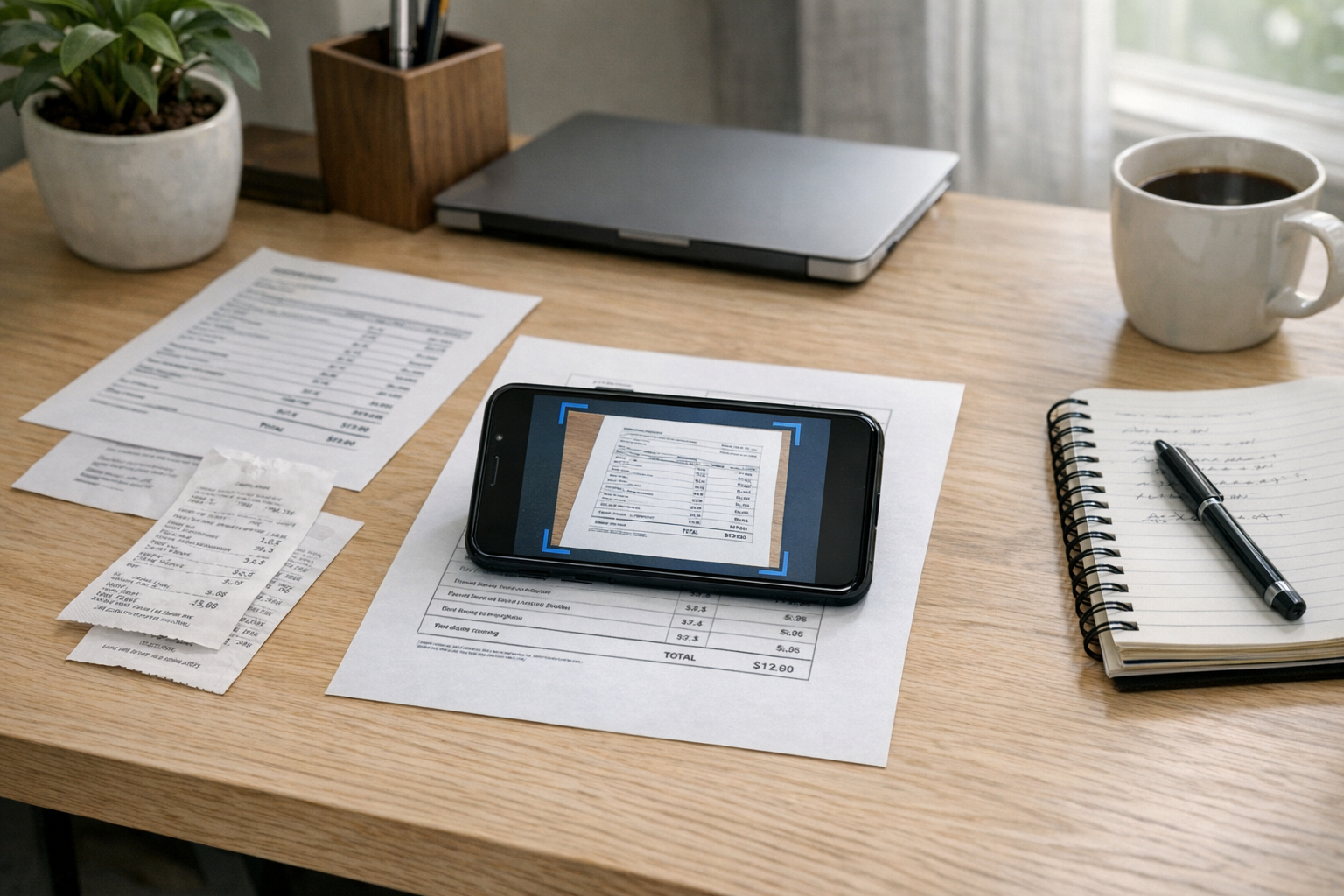
Most people look for a scanner app free option when the problem is already urgent. A form needs to be sent in an hour. Printed docs have to become shareable files. A landlord asks for a signed PDF. A school worksheet must be uploaded before midnight. In those moments, the real need is not “advanced document software.” It is a fast, reliable way to capture paper with a phone camera, clean it up, save it as a PDF, and move on.
That is the practical space Scan Cam is built for. It is a document scanning and PDF management app designed for people who regularly deal with document capture, digital filing, and lightweight document editing on mobile. Instead of treating scanning as a niche office task, it handles the everyday reality: receipts, agreements, IDs, handwritten notes, printed pages, and photo-to-PDF conversions that need to look readable and organized.
The core problem: paper and scattered files slow everything down
Paper is still everywhere, even when work and school happen mostly on screens. The trouble starts when physical documents and digital files mix together. You may have:
- a printed contract on a desk,
- supporting photos in your phone gallery,
- an old form saved as PDF,
- text that later needs to go into microsoft word,
- and a signature step that happens through docusign.
Without a dependable mobile scanner, that process becomes messy. Photos are crooked. Lighting is uneven. Pages are stored under random names. A receipt gets lost among vacation pictures. A multi-page document ends up as six separate images instead of one shareable PDF.
This is why a professional mobile scanner matters. Not because every user needs enterprise software, but because basic document work becomes much easier when one app can scan, crop, enhance, sort, and export clean PDFs from a phone camera.
Who Scan Cam is for
Scan Cam suits people who handle documents often enough to care about speed and clarity, but not necessarily enough to own a desktop scanner. That includes several common groups.
Students
Students often need to scan lecture notes, workbook pages, signed permission slips, certificates, or printed readings. A phone-based scanner is especially useful when sharing homework, archiving course materials, or turning handwritten pages into PDF documents that are easier to email or upload.
Freelancers and remote workers
Freelancers deal with invoices, agreements, briefs, expense receipts, and client paperwork. Many also jump between PDF, image, and microsoft word workflows. A scanner app free from hardware dependence makes it easier to create presentable files from anywhere.
Small business owners
For small teams, document management often happens on the fly. Someone needs to scan a delivery slip, save a vendor invoice, or send signed paperwork before the workday ends. A mobile PDF scanner helps avoid delays caused by office-only equipment.
Families and everyday users
Not every scanning task is work-related. Insurance papers, identification copies, medical forms, school records, appliance warranties, and handwritten notes all benefit from being converted into neat, searchable digital records. One practical pairing for busy households is to keep documents organized in a scanner while using a separate family utility such as a family location tracker for day-to-day coordination.
What makes a scanner app useful on first use
A lot of people download a scanner once, test it for two minutes, and decide quickly whether it stays or gets deleted. First-use experience matters more than long feature lists. A good document scanner should make these jobs feel easy right away:
- Capture paper with the camera clearly
- Detect edges and remove background distractions
- Improve readability for text-heavy pages
- Combine multiple pages into one PDF
- Export or share documents without confusion
- Keep scanned items organized for later use
That is where Scan Cam is most useful as a tool: it removes the friction between seeing a paper document and having a polished digital version ready to send.
Practical first-use scenarios for Scan Cam
If you are trying to understand whether the app fits your routine, these are the most realistic starting points.
1. Turning paper docs into one clean PDF
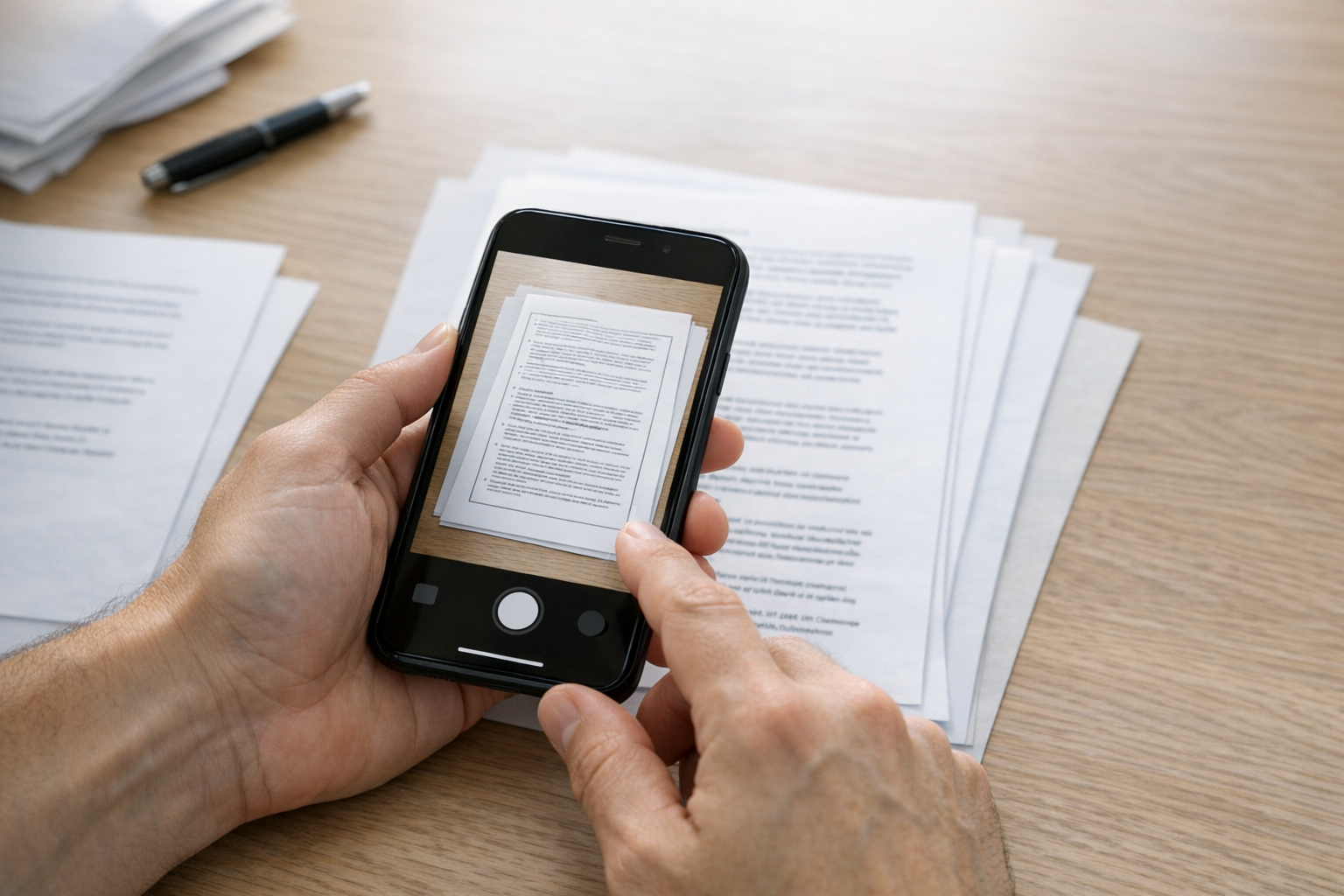
This is the most common use case. Imagine a job application packet with two forms and one signed page. Using your phone, you scan each page, arrange them in order, and export them as a single PDF instead of separate photos. That small difference makes the file easier to upload and much more professional to send.
This same workflow applies to school assignments, rental applications, tax paperwork, and onboarding forms.
2. Converting photos of receipts into organized files
Receipts are easy to lose and annoying to search for later. A scanner can take loose photos from your gallery and convert them into named PDF records. For freelancers, this is useful for reimbursements and bookkeeping. For families, it helps with warranty claims or expense tracking.
One common mistake is saving every receipt as a separate image and never renaming it. A better approach is to scan, label by date or vendor, and group related items into folders or categories if the app supports it.
3. Preparing a document before sending it to docusign
Many people first encounter scanning because they need a signature workflow. A landlord, client, school, or employer requests a document through docusign, but the original page exists only on paper. The practical solution is to scan the page into a clean PDF first, then upload or send the file into the signing process.
The key here is readability. If the scan is dark, skewed, or cut off, the signature step becomes harder than it should be. Good scanning reduces that friction before the document reaches the signing platform.
4. Moving printed text into a microsoft word workflow
Some documents do not end their life as PDFs. A user may need a scanned page for reference and then rebuild or edit the content in microsoft word or another ms office tool. Even when the final editing happens elsewhere, starting with a sharp digital scan helps preserve the layout and keeps source material easy to access.
This is common with old forms, class handouts, archived business records, and printed drafts that need updates.
5. Creating a photo to PDF packet from a phone
Sometimes the document is not paper at all. It may be a set of gallery images: property photos, product images, event snapshots, or reference images for a report. In that case, a photo to PDF workflow is more useful than standard scanning. Putting related pdf photos into one file can make sharing much cleaner than sending ten separate images over chat or email.
Common pitfalls when using a mobile scanner for the first time
Even a strong PDF scanner can produce poor results if the capture habits are messy. These are the first things to watch.
Bad lighting
Overhead shadows and dim rooms reduce legibility. Natural light or even, indirect lighting usually gives better results than a single harsh lamp.
Busy backgrounds
Scanning a page on a patterned bedspread or cluttered table makes edge detection harder. A plain surface helps the scanner identify the document correctly.
Rushed framing
Users often crop off corners by trying to scan too quickly. Leaving a little space around the page usually improves auto-detection.
No naming system
A scan is only useful later if you can find it. Use simple names such as “March Rent Receipt,” “Passport Copy,” or “Client Contract Draft.” Good document management is often less about advanced features and more about basic consistency.
How Scan Cam fits among common scanner expectations
People comparing apps often search for terms like pdf editor, pdf converter, genius scan, camscanner, or pdf scanner because they already know the category but not which tool matches their habits. The better question is simpler: what do you need to do most often?
- If you mostly need to scan paper quickly, image cleanup and export quality matter most.
- If you frequently manage stored documents, organization and retrieval matter more.
- If you work between image, PDF, and office formats, compatibility with sharing and editing workflows becomes important.
- If you regularly send forms for signatures, clean PDF creation before docusign is a practical priority.
Scan Cam is easiest to understand when viewed through those daily tasks rather than through a long checklist of technical features.
A simple way to start using it well
If you are opening the app for the first time, start with a small, useful batch instead of your entire paper backlog. A practical setup looks like this:
- Scan one ID-safe document such as a bill or printed note.
- Scan a two- or three-page packet and export it as one PDF.
- Convert one set of gallery images into a photo-to-PDF file.
- Rename each item clearly.
- Test sending one file by email or uploading it to a form workflow.
That short test shows whether the app matches your real needs without overcomplicating the first session.
For users interested in the broader mobile software ecosystem behind utility apps, Codebaker’s mobile app portfolio offers helpful context around tools built for practical phone-based tasks, including scanning and fax-related workflows.
Why this kind of app keeps earning a place on people’s phones
Most apps are optional. A document scanner tends to stay installed because paperwork never fully disappears. There is always another form, another receipt, another set of printed pages, another image that should really become a PDF. What users want is not novelty. They want a dependable way to turn physical or scattered material into clean, usable digital files with minimal effort.
That is the real introduction to Scan Cam: not as abstract software, but as a practical document management tool for the moments when your phone needs to act like a portable scanner, PDF converter, and lightweight document organizer all at once.
For the related workflow and its limits, read: How to Scan a Document on Your iPhone or Android (and When You Need More Than the Camera); Scan to Word & Searchable PDF: Getting Editable Text Out of a Photo (OCR Explained).