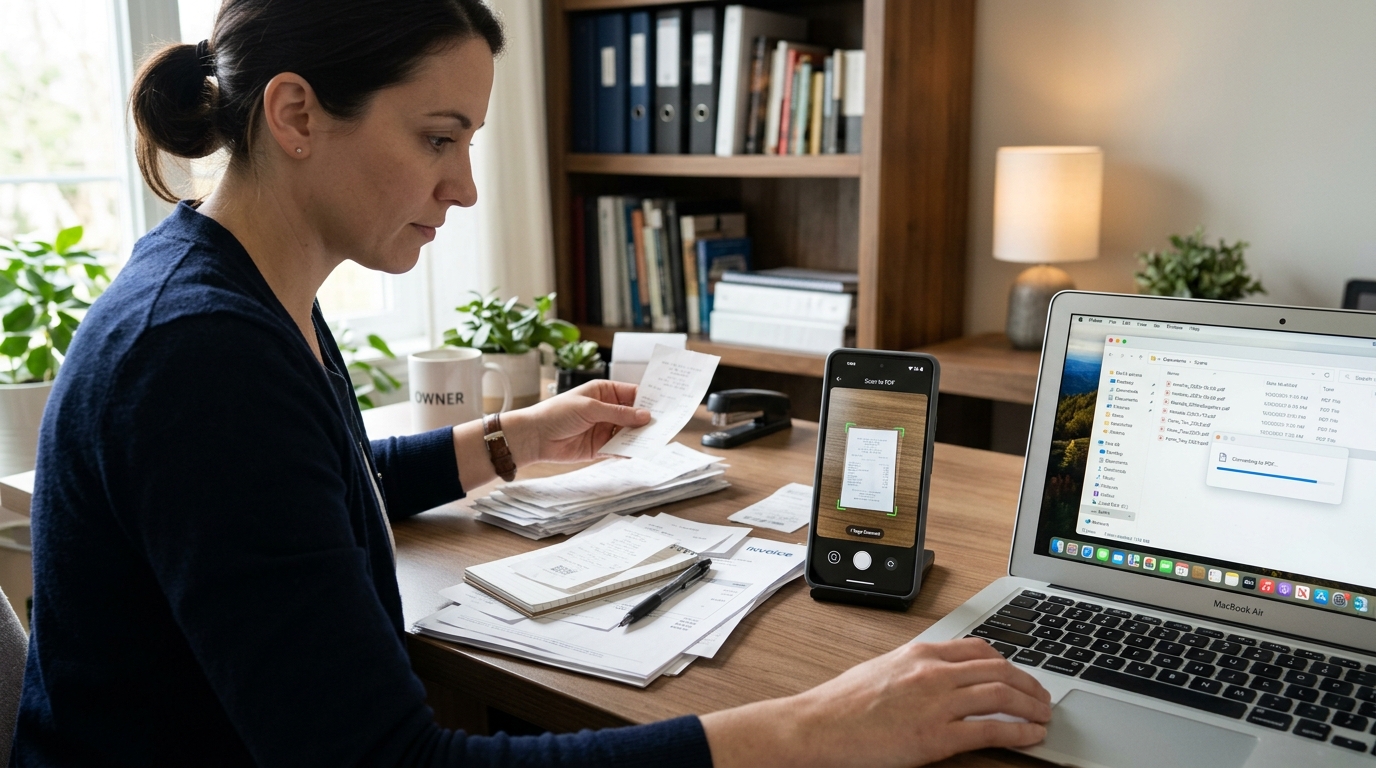
What are people really looking for when they search for genius scan, pdf scanner, photo to pdf, pdf converter, or pdf editor? In most cases, they are not looking for five separate tools. They want one reliable way to capture paper documents, turn them into readable PDFs, fix small issues, and send or store the result without friction.
My view is simple: the best document app is not the one with the longest feature list. It is the one that removes steps from your workflow. I work on cloud storage and file management systems, and I’ve seen the same pattern over and over: users rarely struggle because scanning is impossible; they struggle because scanning, converting, renaming, merging, and editing happen in different places, which creates errors and wasted time.
A pdf scanner app is software that uses your phone camera to capture documents, detect edges, improve readability, and save the result as a PDF or image file. For students, freelancers, solo professionals, remote workers, and small teams handling receipts, signed forms, notes, invoices, and ID copies, that matters more than flashy extras.
If your goal is simple document capture and cleanup on iPhone or Android, Scan Cam: Docs PDF Scanner App is built for exactly that use case. It’s a mobile document scanner and PDF management app for people who need clean results quickly, not a bloated office suite on a small screen.
Feature count is less important than workflow fit
Search terms can be misleading. Someone may type genius scan when they really mean “I need to scan to PDF without ugly shadows.” Another person may search pdf converter but actually wants to turn a contract photo into a document they can send. And plenty of people looking for a pdf editor only need to reorder pages, crop edges, or merge multiple scans into one file.
That is why I recommend evaluating document tools by workflow, not by label. Ask yourself:
- Do you mostly capture paper with your phone camera?
- Do you need to convert photos into shareable PDF documents?
- Do you often combine multiple pages into one file?
- Do you need light editing after the scan, or full document authoring?
- Do you work offline sometimes?
Your answers matter more than category names in an app store.
A good photo to PDF tool should fix capture problems before they become file problems
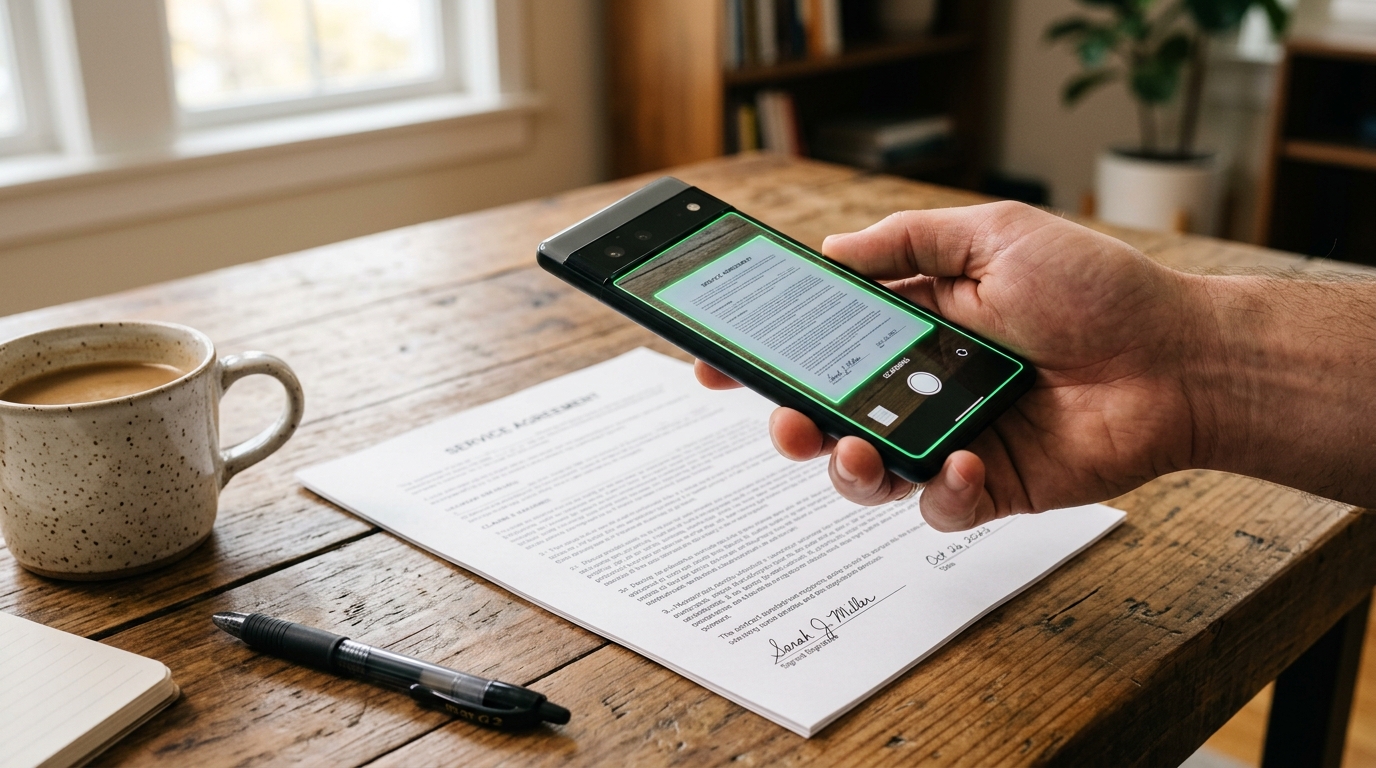
One of the biggest mistakes I see is treating photo to pdf as a conversion problem only. It is not. It starts at capture. If the original image is skewed, dim, low contrast, or cropped badly, the PDF will simply preserve those problems in a more official-looking format.
A strong scanner workflow should handle:
- edge detection that finds the page accurately
- perspective correction for angled shots
- contrast tuning so printed text is readable
- shadow reduction for indoor scans
- multi-page capture for longer docs
Generic camera apps can take pictures of documents, but they do not consistently produce document-grade output. That is the practical difference. A normal photo app captures a scene. A document scanner tries to isolate the page and make it usable.
If you want a fast route from paper to polished file, Scan Cam’s scan-to-PDF flow is designed around that reality. You’re not just saving photos; you’re producing cleaner documents.
Most people do not need a full PDF editor on mobile
This is where I take a clear stance: most mobile users overestimate how much editing they need and underestimate how much organization they need. On a phone, a pdf editor is most useful for practical adjustments, not heavy layout work.
In practice, mobile editing usually falls into five common jobs:
- reordering pages
- deleting a bad page
- merging related scans
- renaming the file clearly
- sharing or exporting in the right format
If you need deep text reflow, advanced annotation pipelines, or document design from scratch, a desktop setup is still the better tool. But if you need to scan a receipt, merge three pages of an application, and send the final PDF in under two minutes, mobile is exactly where the job should happen.
Scanning is rarely the end of the task. In practice, the real value is what happens immediately after capture: quick cleanup, page order fixes, naming, and sharing.
The right PDF converter reduces app switching
People often use the phrase pdf converter broadly. Sometimes they mean image to PDF. Sometimes they mean doc to PDF. Sometimes they simply want one format that is easier to send and harder to accidentally alter.
From a file-management perspective, conversion matters because it standardizes output. A folder full of random photos, screenshots, and unnamed documents is hard to search and harder to trust. A clean set of named PDFs is much easier to archive, share, or attach to a form flow.
Here is the practical comparison I use:
| Need | Best tool type | Why |
|---|---|---|
| Take a picture of paper and send it as a file | Document scanner | Improves readability during capture |
| Turn existing images into one document | Photo to PDF tool | Combines images into a standard shareable file |
| Clean up page order or combine scans | Light PDF editing tool | Handles small fixes without extra software |
| Convert mixed document inputs into PDF output | PDF conversion tool | Keeps file format consistent for storage and sharing |
The best mobile apps cover more than one of these jobs, which is exactly why category labels blur together in real use.
Some users need simplicity more than power
Who benefits most from this kind of app? Students scanning lecture handouts. Freelancers sending signed paperwork. Small business owners capturing receipts and invoices. Remote workers digitizing printed notes. Anyone who deals with documents but does not want a full office suite.
Who is this not for? If you need enterprise approval chains, advanced legal redaction, or complex desktop publishing, a lightweight mobile scanner will feel too narrow. That is not a weakness. It is healthy product scope.
I think people make better choices when a tool is specific about what it is. Scan Cam is not trying to replace every document system. It is for users who want to scan, convert, organize, and share docs and files from their phone with less friction.
Selection criteria should start with reliability, not marketing claims
When choosing between a generic document app and a dedicated scanner, I’d focus on these criteria first:
- Capture quality: Does the app consistently detect page edges and improve readability?
- Speed: How many taps does it take to go from paper to final PDF?
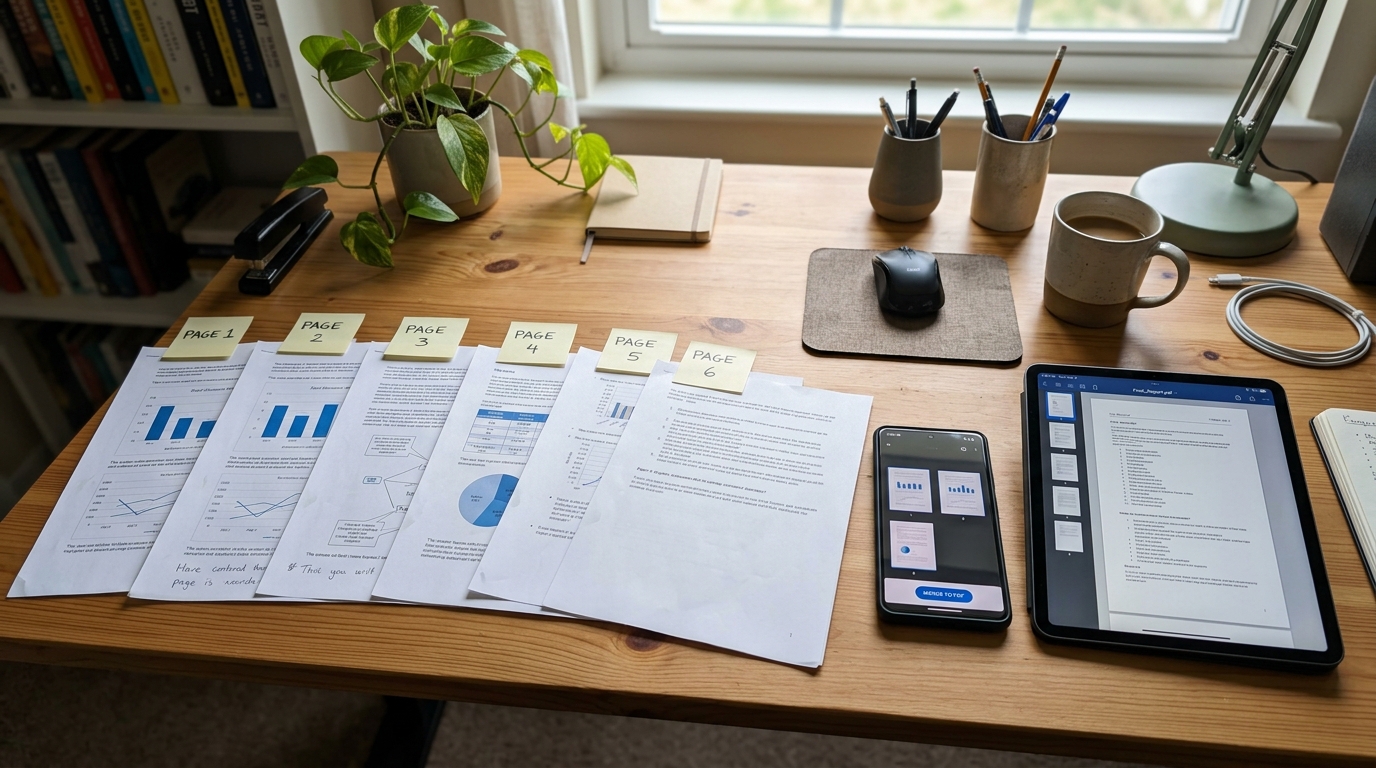
- Multi-page handling: Can you scan, reorder, and merge without confusion?
- Editing scope: Are the post-scan fixes you actually need available?
- Offline usefulness: Can basic scanning work without depending on a constant connection?
- Export flexibility: Can you share files where you need them, when you need them?
- Pricing clarity: Is the free or paid model understandable, or full of unpleasant surprises?
Notice what is missing: giant feature bundles. In practice, users keep apps that feel predictable. They uninstall apps that hide basic tasks behind too many steps.
That same principle shows up across mobile products built by teams like Codebaker, a company focused on practical utility apps. The apps that last are usually the ones that respect time and reduce confusion.
Common mistakes quietly ruin document quality
The worst scan problems usually start before the file exists. Here are the mistakes that show up again and again:
- Using bad lighting: Overhead shadows make contracts and receipts harder to read.
- Shooting at an angle: Perspective distortion can make pages look sloppy even after correction.
- Ignoring file names: “scan_4837” is useless three weeks later.
- Mixing photos and documents in one gallery workflow: Important files get lost among casual images.
- Over-editing: Too much contrast can erase faint details like signatures or stamps.
- Forgetting page order: Multi-page docs lose meaning when arranged incorrectly.
If this sounds basic, good. Document problems are often basic. But they compound quickly when you handle a lot of files.
From what I’ve seen in file workflow systems, high-volume usage exposes boring problems first: naming, clarity, capture angle, and workflow fatigue.
Short questions reveal what users actually need
Is a regular camera enough for documents?
Sometimes, but only for casual reference. If readability, cropping, or professional sharing matters, a document scanner is the better fit.
Do I need separate apps for scan, convert, and edit?
Usually not. Most people are better served by one app that covers capture, PDF creation, and light editing well.
Is photo to PDF the same as scanning?
Not exactly. Photo to PDF can simply bundle images into a PDF, while scanning usually improves the document during capture.
When does a mobile PDF editor stop being enough?
When your work depends on advanced formatting, long-form revisions, or compliance-heavy review steps. That’s when desktop tools start to make more sense.
The best document workflow is the one you will actually keep using
My core opinion is this: users searching for genius scan, pdf scanner, photo to pdf, pdf conversion, and pdf editing are usually searching for fewer steps, not more capability. The winning app is the one that turns paper into a clean, shareable file without making you think too hard about the process.
That means fast capture, sensible cleanup, reliable export, and just enough editing to finish the job. Not every user needs the same thing, and that is exactly why choosing by workflow is smarter than choosing by keyword label.
If you want a simpler way to scan docs, merge pages, and produce usable PDFs from your phone, Scan Cam’s document workflow is built for that everyday reality. And if you need more than that, it’s better to know it early rather than force a lightweight mobile tool into a job it was never meant to do.