
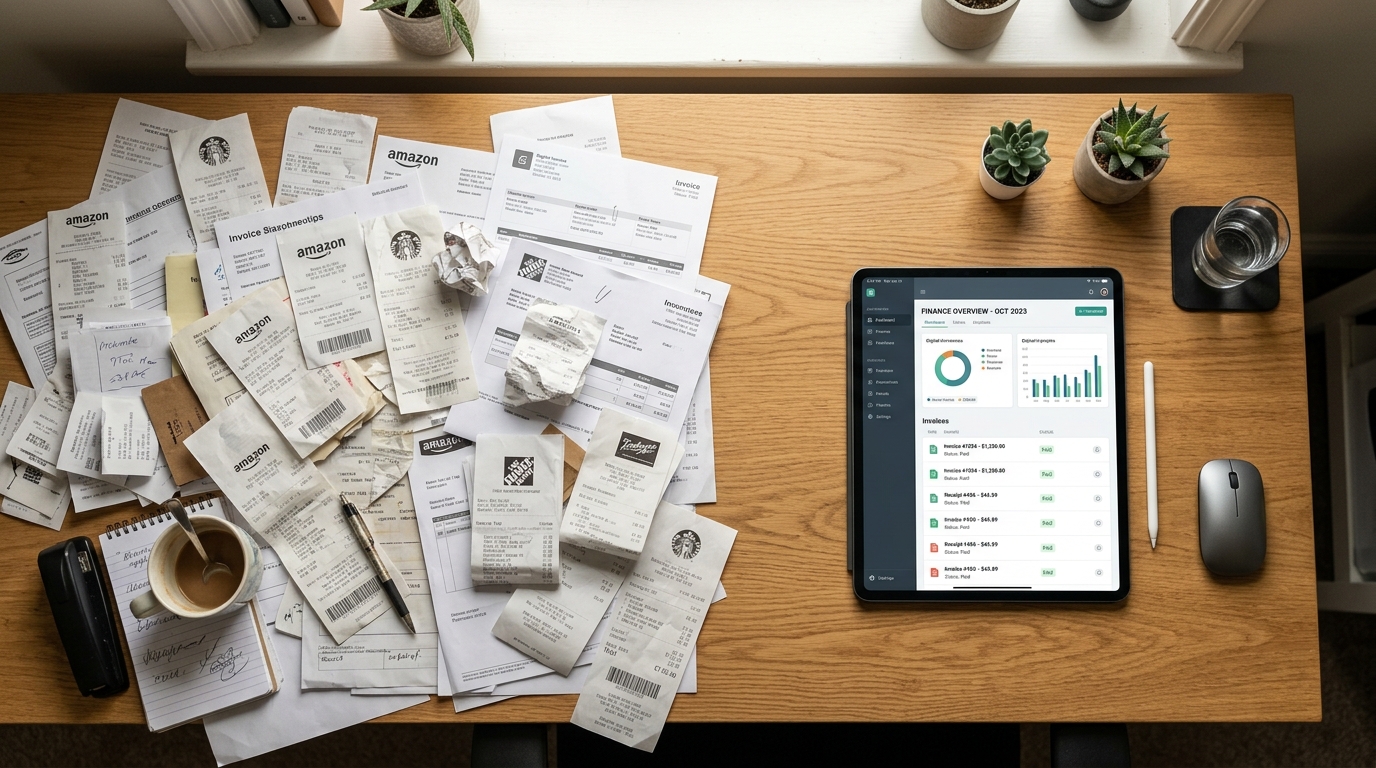
Are you still treating your smartphone camera like a basic photocopier, instead of the data extraction powerhouse it actually is?
The biggest bottleneck in modern paperwork isn't capturing the image; it's the friction of what happens next. Scan Cam: Docs PDF Scanner App is a professional tool designed for iOS and Android that helps freelancers and small teams turn physical pages into editable formats instantly. Whether you need to empty a physical receipt jar, perform a quick jpg to pdf conversion, or transform a pdf to word document without heavy desktop software, this workflow is designed for you.
In my UX research observing how independent professionals handle administrative tasks, I consistently see the same pattern. People take photos of contracts, email them to themselves, and waste thirty minutes doing a five-minute job. The process is broken.
Let's fix it. Here is a practical, step-by-step workflow for taking your paperwork from physical clutter to actionable digital files.
Step 1: Empty Your Physical Receipt Jar and Audit Your Backlog
Before you even open an app, you need to consolidate your physical documents. Many small business owners and freelancers treat a shoebox or a desk drawer as a literal receipt jar.
This habit creates massive anxiety during tax season. You might have faded invoices for professional equipment—like high-end hair trimmers or backup cordless clippers if you run a salon. Or perhaps you are holding onto vehicle maintenance records for an electric fleet SUV, a standard company sedan, or an older economy car used for deliveries.
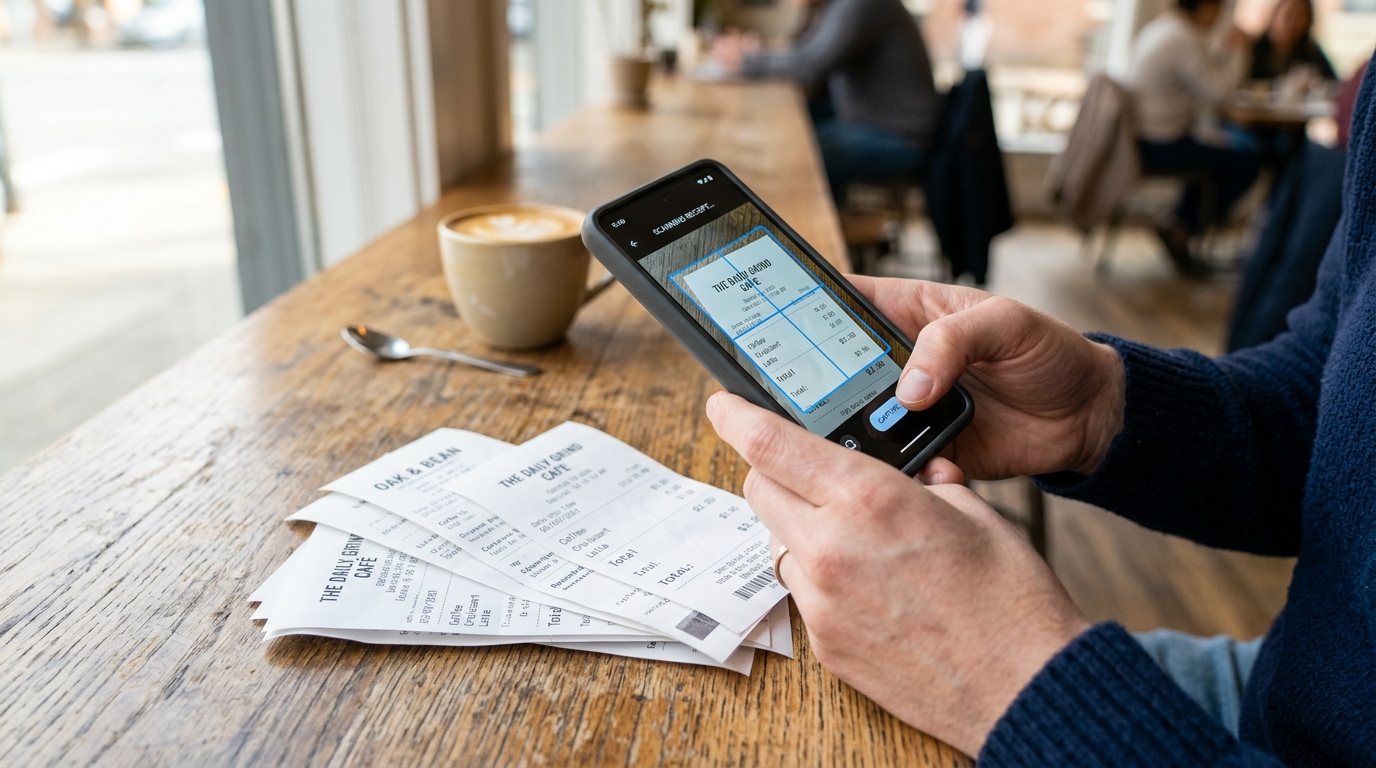
Gather these documents into categories: expenses, contracts, and reference materials. Establishing a clear pile system before you begin scanning ensures that your digital folders will mirror a logical physical structure. For agile teams and solo operators, an organized stack of paper is the first step toward digital freedom.
Step 2: Capture Clean Images and Convert JPG to PDF
Once your documents are sorted, it is time to digitize them. Taking a standard picture with your phone's native camera app usually results in shadowed, skewed images that are difficult to read.
When you capture pdf photos using a dedicated scanner, the software automatically detects the edges of the paper and corrects the perspective. This is the critical difference between a simple photograph and a professional scan.
As my colleague Onur Başaran detailed in his analysis of what 50,000 scans teach us about camera workflows, users frequently make the mistake of relying on their camera roll. By moving directly from a physical page to a clean PDF, you skip the tedious jpg to pdf conversion process later.
- Tip for success: Always scan in a well-lit area. Place your documents on a contrasting background (e.g., a white piece of paper on a dark wooden table).
- Batch scanning: If you have a 50-page manual for a complex WMS (Warehouse Management System), use the batch feature to compile all pages into a single file instantly.
Step 3: Convert PDF to Word for Immediate Editing
Having a digital image of text is only half the battle. Often, you need to update old contracts or copy text for a new proposal.
The demand for editable document formats in business has skyrocketed. Recent market analysis suggests the global pdf to word converter market is seeing significant growth as more professionals move to mobile-only environments. By eliminating the need to retype printed text, users can see massive efficiency gains in their weekly administrative routines.
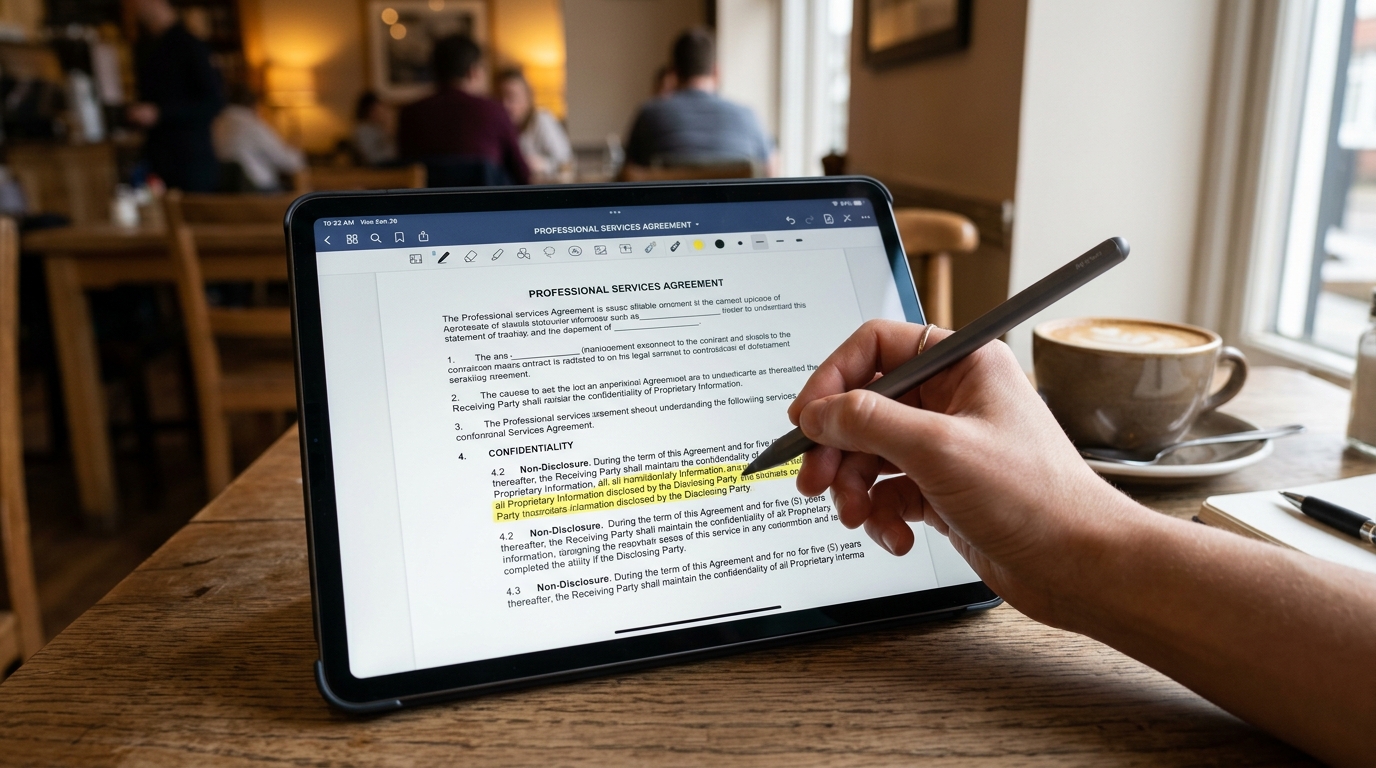
When you use a mobile converter, you can point your camera at a printed contract and transform it into a document you can actually edit. You can then adjust the terms, update pricing, and finalize the agreement without ever touching a physical keyboard.
Step 4: Stop Struggling to Edit Adobe Acrobat PDF Files on Mobile
A major point of friction I observe in user testing occurs when someone receives a PDF via email and needs to make a minor change—perhaps signing a page or adding a date.
Historically, people believed they needed to return to their desktop to edit adobe acrobat pdf files. Gizem Tunç recently discussed this behavioral shift in her post explaining why users are moving away from legacy desktop software.
Today, your mobile device is fully capable of handling these tasks. A modern editor allows you to annotate and sign documents directly on the screen. If you need to send a signed estimate from your car, Scan Cam's signature and annotation features are designed for that specific mobile-first urgency.
Step 5: Standardize Your Naming and File Management
A scanned document is useless if you cannot find it three months later. After you scan your files, take five seconds to rename them using a consistent convention.
I recommend the format: YYYY-MM-DD_ClientName_DocumentType.
Regardless of whether a supplier sends a file labeled as a "professional document scanner" or uses localized terminology in their own app, standardizing your internal file names keeps your digital archive searchable. This is the cornerstone of a "zero-paper" office.
Step 6: Choose the Right Tool for Your Specific Needs
When evaluating a scanner app, consider these essential selection criteria:
- All-in-one capability: Does it allow you to merge files and convert pdf photos in one place?
- Offline support: Can you scan and save documents when you are without cellular service?
- Export options: Does it easily share to cloud storage or team communication channels?
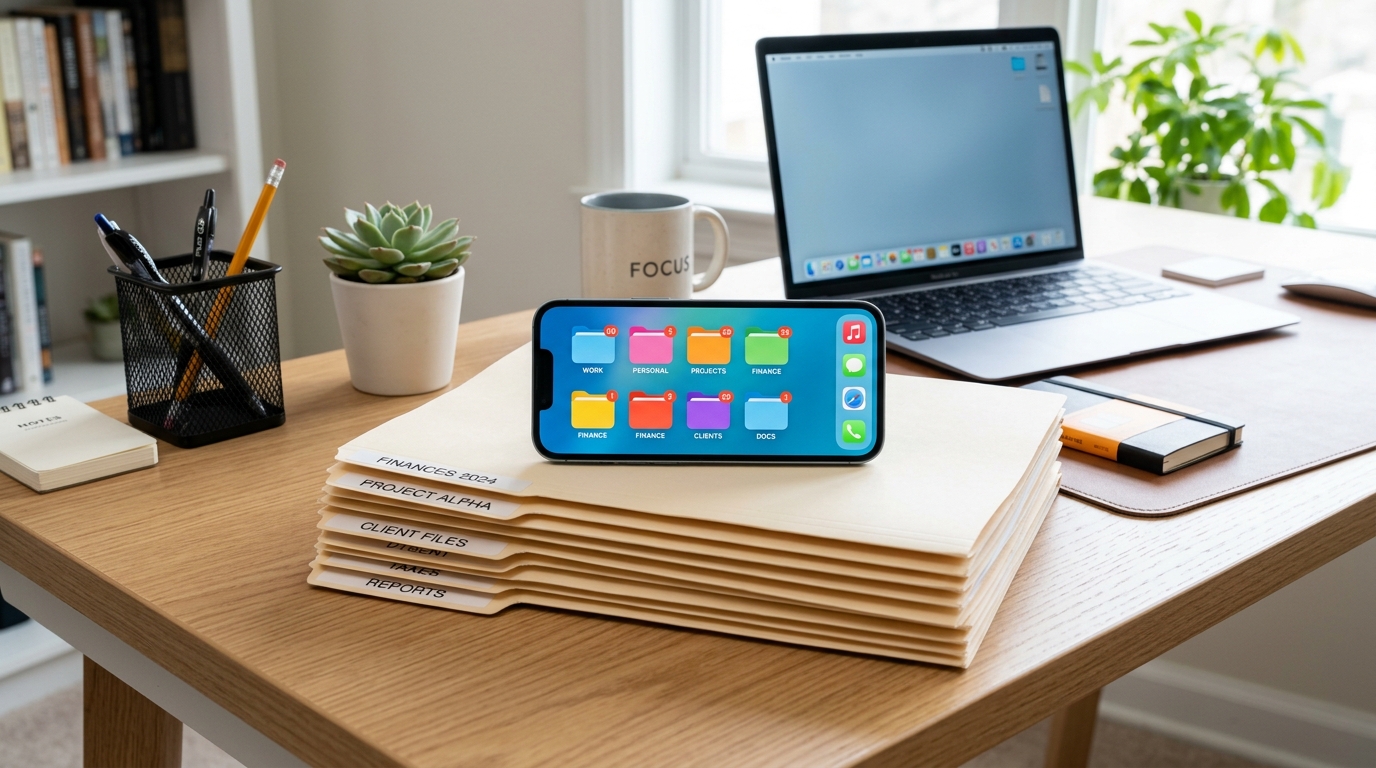
By consolidating your workflow into a single application, you reduce cognitive load and simplify your daily operations. Technology should adapt to your habits, not the other way around. If you are exploring broader mobile utility tools that simplify daily tasks, teams at companies like Codebaker prioritize this exact kind of functional, user-first design across their applications.
Stop letting paper dictate your schedule. Grab your phone, clear off your desk, and start scanning.