
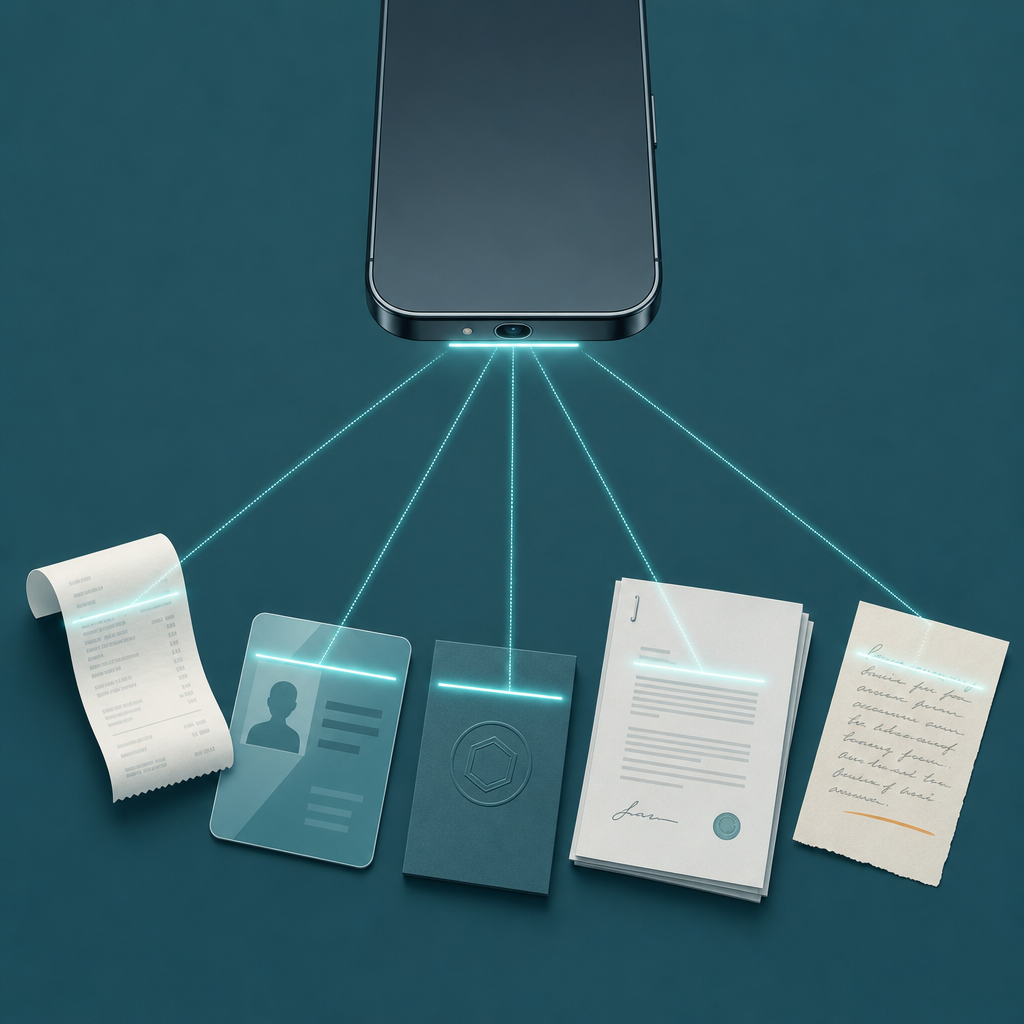
Short answer: The five documents most worth scanning with a phone are receipts, IDs, business cards, signed contracts, and handwritten notes. Each fails differently — a receipt blows out under glare, an ID reflects its laminate, a card's embossing washes flat. So the fix is per-item: one capture setting per document type, not one filter for all five.
Most "best receipt scanner app" advice stops at "open the app and tap." That skips the part that actually decides whether the file is usable six months later, when an accountant, a form, or a contacts app reads it back. A thermal receipt and a glossy passport page are not the same scanning problem. Below is a capture playbook organized by what you are pointing the camera at, with the single setting that rescues each one.
1. Receipts: the document that fades, curls, and blows out
Receipts are the highest-value scan for most people because of taxes. Both the U.S. IRS and the U.K. HMRC accept digital copies of receipts as records, provided the copy is legible and complete — IRS Publication 583 and HMRC's record-keeping guidance both treat a clear scan or photo as an acceptable substitute for the paper original. That is the whole reason a receipt scanner app earns its place on your home screen: the paper is thermal, and thermal print fades. The digital copy is the version that survives.
The most common failure: glare. Thermal paper is semi-glossy and curls, so an overhead light turns the middle of the receipt into a white stripe and eats the total. The one setting that fixes it is the black-and-white "document" filter, chosen before you capture, not after. A high-contrast B&W mode crushes the reflective sheen into readable text and previews almost exactly what survives in the saved PDF. Lay the receipt flat first — a coffee mug on each end beats fighting the curl.
Claim: A scanned receipt is an acceptable tax record if it is legible and complete.
Evidence: IRS Publication 583 and HMRC record-keeping guidance both accept digital copies of receipts.
Limit: This is general guidance, not tax advice, and rules differ by country and tax type.
Action: Save each receipt as its own clearly named PDF, with the total readable, on the day you get it.
2. IDs and passports: the glossy page that reflects everything
An ID is glossy by design — the laminate that protects it also bounces your ceiling light straight back into the lens, usually right across the photo or the document number. People respond by adding more light, which makes it worse.
The setting that fixes an ID is the opposite of receipts: kill the flash and move, do not add light. Turn the flash off, then tilt the card a few degrees and shift your hands until the bright reflection slides off the data you need, then capture. Color, not the B&W document filter, because an ID's value is often in the photo and the holographic detail. A clean angled capture under soft, indirect light beats a flat, flashed one every time.
One caution that belongs here, not in a footnote. ID scans are sensitive personal data, and if your scan ever leaves the device, that becomes a privacy question. Apple's App Store privacy-label requirements (the "App Privacy" section every listing must complete) force apps to disclose whether they collect data and how it is used — so before you scan a passport into any app, read its privacy label and confirm the scan stays local or is encrypted. Treat an ID image like a spare key: useful, and dangerous if it leaks.
3. Business cards: the embossed name that disappears flat
Business cards have two enemies. Premium cards use embossing or foil, which the camera flattens into invisibility under direct light, and the whole point of scanning a card is the text — you want it back as a contact, not a photo in a folder.
So the card setting is about the destination. Capture in color with raking side light so embossed or foil type catches a shadow and stays readable, then run OCR and export to a contact rather than saving an image. The clean standard for that hand-off is vCard, defined by RFC 6350 — a vCard (.vcf) file maps name, phone, email, and company into the exact fields your phone's contacts app expects. If a card scanner exports vCard, the name lands in your address book correctly instead of as a blurry square you will never open again.
Claim: Business-card scanning is only useful if the result becomes a contact, not an image.
Evidence: vCard (RFC 6350) is the standard contact format that maps card fields into address-book fields.
Limit: OCR accuracy depends on the card's font, contrast, and layout; verify the extracted phone and email before saving.
Action: Prefer a scanner that exports vCard, and check the parsed fields once before you trust them.
4. Signed contracts and forms: the multi-page document that arrives crooked
Contracts fail in a boring way that costs you the most: page two is skewed, or a staple shadow swallows a clause, and the other side asks you to resend. The value here is a single, ordered, multi-page PDF — not five separate images texted out of sequence.
The setting that matters is auto-capture plus a corner-crop check on every page. Let edge detection shoot each page square, but before you finish, drag the crop handles to the true paper edge so no desk or shadow leaks in. Keep it in color if there is a blue-ink signature or a colored stamp; signatures sometimes read as smudges in aggressive B&W. Then export the whole stack as one PDF in page order. That is the file a counterparty can actually file.
5. Handwritten notes and whiteboards: the low-contrast page you want searchable
Pencil notes, a whiteboard, a recipe card — these are low-contrast and easy to lose in a camera roll of thousands of photos. The reason to scan them rather than snap a photo is search: OCR text inside a PDF means you can find the note by typing a word from it later.
The setting is a "grayscale" or enhanced filter, not full black-and-white. Pure 1-bit B&W often drops faint pencil strokes entirely; grayscale lifts contrast while keeping the light marks. For a whiteboard, square up to the board to avoid keystone distortion, then crop to the writing. Save with OCR on so the text is searchable, and the note stops being a photo and becomes a document you can retrieve.
The setting that changes per document — a quick map
| Document | Most common failure | The one setting that fixes it | Color or B&W |
|---|---|---|---|
| Receipt | Glare stripe eats the total; thermal print fades | B&W document filter, set before capture; flatten the curl | B&W |
| ID / passport | Laminate reflects light over the data | Flash off; tilt and slide the reflection off the page | Color |
| Business card | Embossed/foil text flattens; ends up as an image, not a contact | Raking side light + OCR export to vCard | Color |
| Contract / form | Skewed pages, lost order, swallowed clauses | Auto-capture + per-page corner-crop check; one ordered PDF | Color if signed |
| Handwritten note | Faint marks vanish; unsearchable in the camera roll | Grayscale/enhance filter + OCR on | Grayscale |
The pattern is the takeaway: the failure is specific to the surface. Glossy things reflect, so you control light and angle; thermal and faint things lose contrast, so you control the filter; cards and notes are about the destination format, so you control the export. A capable scanner like Scan Cam bundles these — auto-capture, filters, OCR, and PDF export — but knowing which one to reach for per document is what actually saves the resend.
FAQ
What is the best way to scan a receipt with my phone for taxes?
Flatten the receipt, set the black-and-white document filter before you capture so glare doesn't hide the total, and save it as its own named PDF. The IRS (Publication 583) and HMRC accept legible digital copies as records, which matters because thermal receipts fade — the scan often outlives the paper. This is general guidance, not tax advice.
How do I scan an ID without the glare ruining it?
Turn the flash off and do not add a lamp — extra light is what causes the reflection. Tilt the card a few degrees and shift your hands until the bright spot slides off the photo and number, then capture in color. Before scanning an ID into any app, check its App Store privacy label and confirm the image stays on your device.
Can I scan a business card straight into my contacts?
Yes, if the scanner runs OCR and exports vCard. vCard (RFC 6350) is the standard format that maps a card's name, phone, email, and company into the fields your contacts app reads, so the entry lands correctly instead of as a stray image. Verify the parsed phone and email once before saving — OCR can misread an unusual font.
Is a phone scan good enough, or do I need a flatbed scanner?
For receipts, cards, notes, and most forms, a phone with good auto-capture and crop control is enough, and it is always with you. A flatbed still helps for fragile originals, tightly bound pages, or high-resolution archival color work where you can't get the page flat by hand. For everyday paperless capture, the phone wins on convenience.
Why does my scanned PDF look worse than the original page?
Usually the wrong filter for the surface. Full black-and-white drops faint pencil and can break a blue signature; pure color keeps glare and shadow. Match the filter to the document — B&W for crisp printed receipts, grayscale for handwriting, color for IDs and signed pages — and fix the crop before export, not after.
What I'd do
Decide by what you're holding, not by habit. Receipt today, before it fades: B&W filter, flatten, save as PDF. An ID for a form: flash off, angle the glare away, keep it in color and local. A card from a meeting: side light, OCR, export to vCard so it becomes a real contact. Pick the setting that matches the surface and you stop resending. Scan Cam is built by CodeBaker, which makes a small family of phone-first document utilities — if you also live by fax for a clinic or landlord, its sibling Fax Scan handles the scan-to-fax version of the same job.