
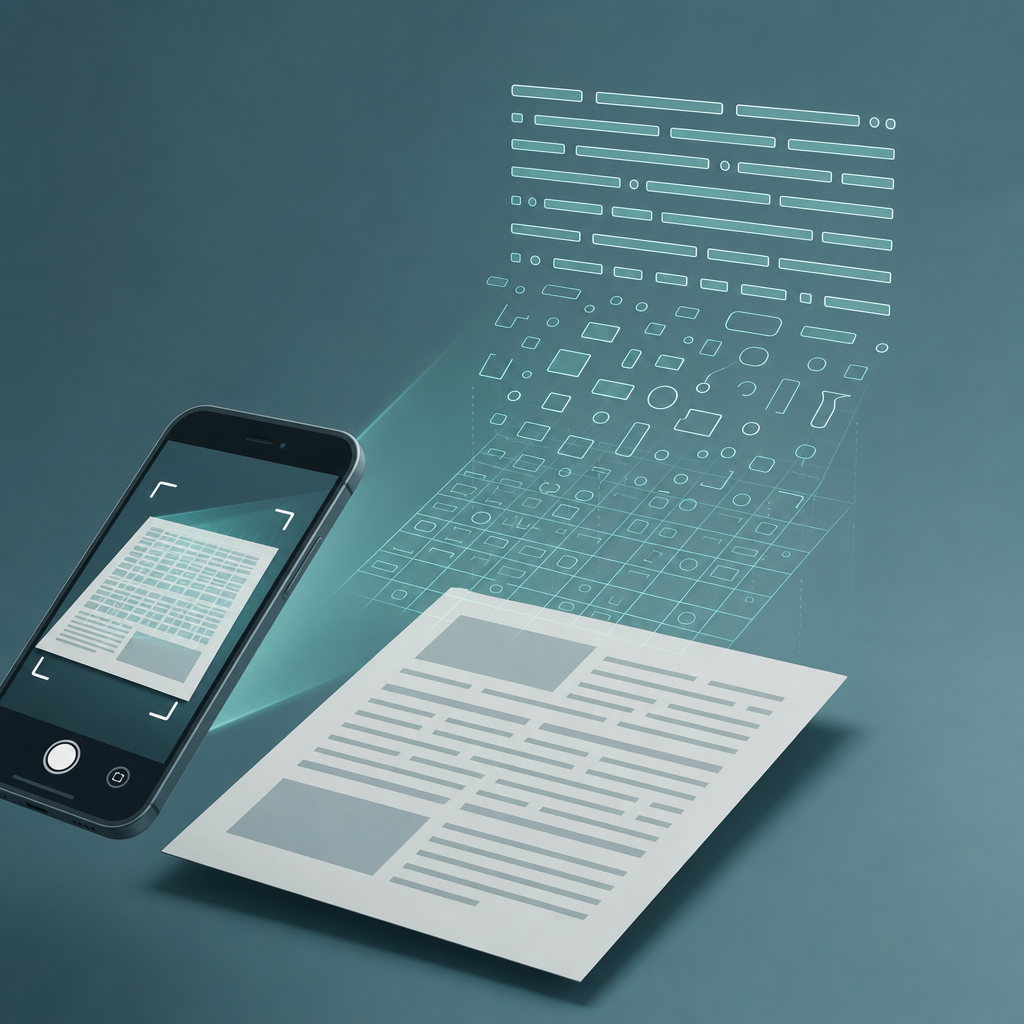
Short answer: To convert a scanned PDF to Word, the file first needs a real text layer — and a photo of a page does not have one until optical character recognition (OCR) reads the pixels and writes characters behind them. Run OCR, export to .docx, then proofread. The single biggest factor in how clean that text comes out is not the OCR engine. It is how you captured the page.
Here is the trap most people hit. You photograph a contract, save it as a PDF, then try to search for a name inside it and get nothing. The file looks like a document but behaves like a picture. That is because a scanner — or a phone camera — produces an image, and an image has no words a computer can select, copy, or edit. OCR is the step that changes that. Capture quality is what decides whether OCR succeeds or hands you garbled text.
Why your scanned PDF isn't searchable in the first place
A PDF can hold two very different things. The ISO 32000 specification that defines the PDF format describes pages built from text objects, vector graphics, and images — so a PDF can be a real document with selectable characters, or it can be a single flattened picture of a page with no characters at all. When you photograph a receipt and "save as PDF," you almost always get the second kind: an image-only PDF.
That distinction matters more than the file extension suggests. An image-only PDF cannot be searched, cannot be copied, and cannot be reflowed into Word as editable paragraphs. It is a photo wearing a document's clothes. To make it behave like text, something has to look at the image and decide "these dark shapes are the letters T-H-E," then store those letters as a hidden, selectable layer sitting on top of the picture. That something is OCR.
Claim: A scanned PDF is not searchable until an OCR text layer is added.
Evidence: The ISO 32000 PDF specification treats image content and text content as separate object types; a page made only of image data contains no character objects to search.
Limit: This explains why search fails; it does not tell you how accurate the recovered text will be.
Action: Before sharing a "searchable PDF," try selecting a word in it. If nothing highlights, it has no text layer yet.
What OCR actually does — and why the engine isn't the hero
OCR works in stages. It finds the page, separates lines from background, isolates each glyph, and matches that glyph against learned character shapes. The open-source Tesseract OCR documentation describes this kind of pipeline — page layout analysis, line and word finding, then recognition — and it is explicit that the input image quality strongly shapes the result. Microsoft's own documentation for Word and OneDrive describes converting PDFs to editable documents and notes that scanned or image-based content depends on recognition rather than existing text. Different toolkit, same dependency.
So the engines are good. Microsoft's PDF-to-Word conversion, the recognition baked into modern scanner apps, and Tesseract all share one weakness: they can only recognize what the image makes visible. Feed any of them a sharp, evenly lit, square-on capture and they perform well. Feed them a dim, tilted, low-contrast photo and the best engine on the market still guesses. The lever you control is the photo, not the algorithm.
I want to be precise about evidence here. I have not run a controlled benchmark for this article, so I am not going to publish a character-accuracy percentage — any specific "98% vs 82%" figure you see in this space is usually unsourced. The effect is real and well-documented qualitatively in the Tesseract docs and elsewhere: better capture, better recognition. Treat the size of that gap as directional, not measured.
The 4-step capture checklist that decides OCR quality
This is the part to internalize. If you fix the capture, the conversion mostly takes care of itself. Each step targets a specific way recognition fails.
- Light the page flat, kill the shadow. The most common OCR killer is your own hand or phone casting a shadow across the text. Soft, even light from the side or from a window beats a single harsh overhead bulb. A shadow gradient makes the engine read part of a line as background and drop characters.
- Shoot square to the page, not at an angle. A tilted capture turns rectangles into trapezoids and stretches the glyphs nearest the camera. Recognition is trained on upright characters of consistent proportion. Get the camera parallel to the paper, or let the app's auto-perspective correct the keystone before you accept the shot.
- Maximize contrast between ink and paper. OCR separates dark text from light background by thresholding. Faint pencil, a yellowed page, or a colored highlight collapses that separation. A high-contrast black-and-white "document" filter often recognizes better than a full-color photo because it sharpens exactly the boundary the engine relies on.
- Fill the frame and hold focus. Tiny text far from the camera gives the engine too few pixels per character to be sure. Move closer so the page fills the frame, tap to lock focus, and wait for the blur to clear. Motion blur smears glyph edges into each other, which is where "rn" becomes "m" and a date becomes nonsense.
Notice what all four steps have in common. None of them touches the OCR software. They are about giving the recognizer a clean, undistorted, high-contrast image — which is exactly what the Tesseract documentation flags as the prerequisite for good output. A dedicated phone scanner such as Scan Cam automates most of this: it detects the page edges, corrects perspective, and applies a document filter before recognizing text and exporting to a searchable PDF or Word.
The actual conversion: scan, recognize, export, proofread
Once the capture is clean, the path to editable text is short. Scan the page. Let the app run OCR so a text layer is written behind the image — this is what makes the resulting PDF searchable. Then export. Microsoft's documentation describes opening a PDF directly in Word, where Word converts it into an editable document; that conversion relies on recognition for scanned content, which is why a clean capture pays off again here.
Do not skip the proofread. OCR is recognition, not comprehension, so it will occasionally swap a similar character or merge two words. The error rate is far lower on a clean capture, but "lower" is not "zero." Scan numbers, names, and totals especially — those are where a single misread character actually changes meaning. If the document is going into a contract or a tax filing, a human pass is non-negotiable.
FAQ
How do I turn a photographed document into editable Word text?
Capture the page cleanly, run OCR so the app recognizes the characters, then export to .docx. You can also open a recognized PDF directly in Microsoft Word, which converts it to an editable document. Expect to proofread afterward — recognition is accurate on a sharp capture but never perfect, especially on numbers, names, and small print.
Why is my scanned PDF not searchable?
Because it is an image-only PDF. The ISO 32000 PDF specification allows a page to be just a flattened picture with no character objects, which is what a photo "saved as PDF" usually produces. There are no words for the computer to find. Running OCR adds a hidden text layer on top of the image, and only then can you search, select, and copy the text.
Does the OCR engine matter more than how I take the photo?
No. Modern engines — including Tesseract and the recognition inside scanner apps — are capable, but they can only read what the image shows. A dim, tilted, low-contrast capture degrades any engine's output. A clean, square, well-lit, in-focus capture improves all of them. Capture technique is the lever you control; the engine is mostly fixed.
Can I convert a scanned PDF to Word for free?
Often, yes. Microsoft Word can open and convert PDFs to editable documents, and OneDrive offers PDF handling as well — check the current terms on Microsoft's official documentation, since features and limits change. Many phone scanner apps include OCR and Word or searchable-PDF export. The quality ceiling is still set by your original capture, not by the price.
Will OCR keep my original layout, tables, and columns?
Partly. Recognition handles plain paragraphs well, but complex layouts — multi-column pages, dense tables, mixed fonts — reconstruct less reliably and may need cleanup in Word. Treat the converted file as a strong draft of the text, then fix structure manually. A cleaner capture helps layout analysis too, since the engine has to find the lines before it can place them.
What I'd do first
Before you blame the software, fix the photo. Most "the conversion was terrible" complaints trace back to a shadow, a tilt, or a blurry shot — not the OCR engine. Light the page flat, square the camera, push the contrast, fill the frame, and only then convert. If your real goal is just a searchable, shareable file rather than a heavy edit, recognize the page and keep it as a searchable PDF; if you genuinely need to rewrite the text, export to Word and proofread the numbers. Scan Cam is built by CodeBaker, which makes a small family of phone-first document tools — including Fax Scan for the days when someone still wants the page sent to a fax number.