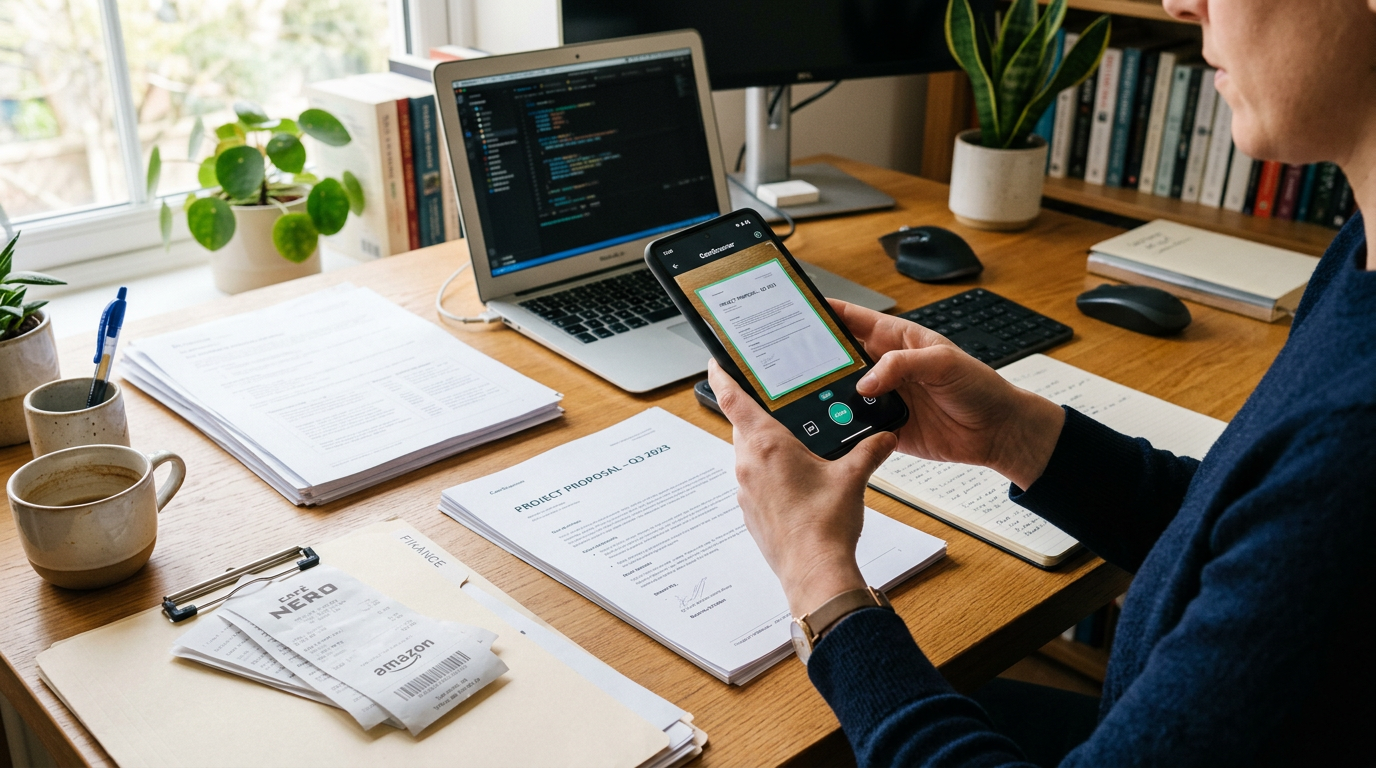
A good scanner does more than capture documents and photos. It should also make the resulting PDF easier to edit, organize, and send, because most people do not scan papers just to leave them untouched on their phone.
That is why improved post-scan editing matters. When a scanner app helps you straighten pages, reorder them, crop distractions, fix contrast, and turn a rough capture into a clean PDF, the gap between “I took a photo” and “I can actually use this document” gets much smaller.
The real problem starts after the scan
People often assume the hard part is using the camera. In practice, the frustrating part usually comes later: a receipt is cut off, a contract page is out of order, lecture notes are too dark, or a multi-page file needs one small change before sharing.
This is where improved edit controls make a noticeable difference. A scanner app that stops at capture leaves users with extra steps. They end up retaking photos, opening another tool, or sending a messy PDF because fixing it takes too long.
For students, freelancers, small business owners, and anyone handling everyday docs, the useful workflow is simple: scan, review, edit, export. If one of those steps feels clumsy, the whole process feels heavier than it should.
What improved PDF editing actually means in a scanner app
Not every edit feature needs to be complex. In a mobile scanner, practical editing usually means the basics are faster and more accurate:
- crop edges without losing important text
- adjust brightness and contrast for readable pages
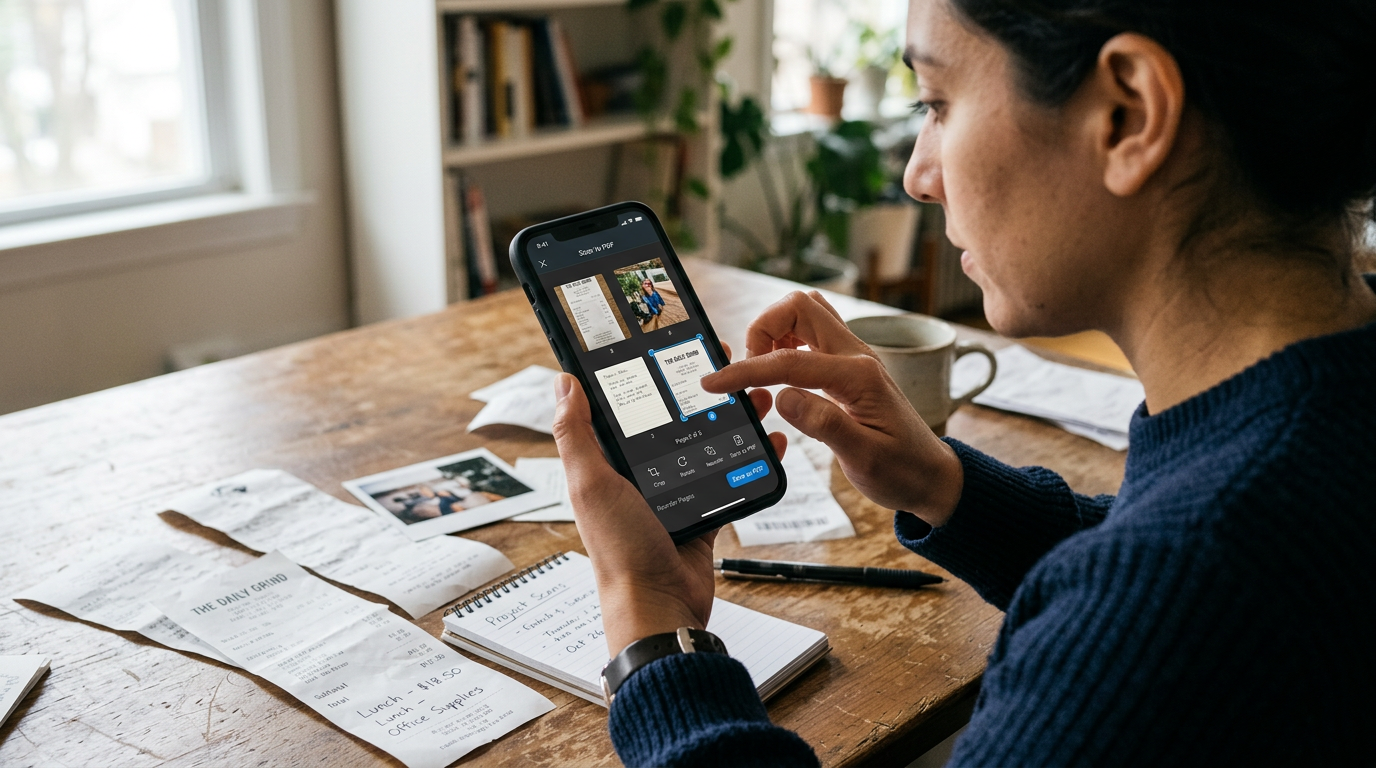
- reorder scanned documents inside one PDF
- remove unwanted pages
- rotate pages that were captured sideways
- combine separate scans and photos into one file
- rename files clearly so they are easier to find later
These are not flashy features, but they affect whether a scanned file is usable. A clean PDF is easier to archive, easier to send, and less likely to need rescanning.
Unlike a basic camera roll workflow, a purpose-built document scanner treats a page as something that needs readability, not just visibility. That distinction matters. A photo of a page may look acceptable on your screen, yet still be awkward to share, print, or review later.
Three common situations where better edit tools save time
1. Expense records that start as rushed photos
Imagine someone photographing fuel receipts, meal slips, and invoices between meetings. The raw photos are often crooked, shadowed, or mixed with unrelated gallery images. If the scanner can quickly turn those into one ordered PDF, the admin task becomes manageable instead of annoying.
In this case, the value is not just scanning. It is being able to edit the set into a file that another person can actually review.
2. Student notes captured in poor lighting
Lecture handouts, whiteboard notes, and printed reading materials are often photographed in less-than-ideal conditions. One page may be tilted, another too dark, another clipped at the corner. Fast post-scan corrections help preserve content without forcing the student to redo everything.
For this type of user, a scanner app should feel forgiving. If you want to convert study documents and photos into a more readable PDF, Scan Cam: Docs PDF Scanner App is designed around that practical need.
3. Forms and signed paperwork that need a clean final copy
Many users scan forms not for storage alone, but for sharing. A landlord request, HR form, consent document, or service agreement often needs a final pass before sending. Reordering pages, trimming borders, and checking clarity can be the difference between “accepted immediately” and “please send that again.”
This is also where people often realize that a plain camera album is not enough. You may capture the page, but you still need a tool that treats the result like a document instead of a casual image.
Who benefits most from this kind of feature update
Improved scan-to-PDF editing is most useful for people who deal with paperwork in small bursts throughout the week rather than in one large office workflow.
That includes:
- students saving class materials and assignment pages
- freelancers sending invoices, agreements, and receipts
- small business operators handling documents on the go
- field workers capturing forms away from a desk
- parents organizing school papers, medical forms, and records
It is especially helpful for users who want one mobile workflow for scan, cleanup, and PDF export without bouncing between multiple apps.
Who is this not for?
If someone needs a full desktop publishing suite, deep legal redaction workflows, or enterprise-level document management with complex approval chains, a phone-based scanner will naturally have limits.
This kind of feature matters more to people who want speed, clarity, and reliable everyday document handling than to teams looking for a heavy corporate system. In Turkish ad-language terms, many users are simply looking for a more professional document scanner yönetim tool style of experience on mobile: practical, organized, and ready for daily use, not a giant office platform.
What to check before relying on any scanner for documents and PDF edits
If you are comparing options, focus on the moments where scanner apps usually fail in real life.
- Can you fix a bad scan quickly?
A good app should let you edit without making you start over from scratch. - Does the PDF stay readable?
Sharp text matters more than aggressive filters. - Is multi-page handling simple?
Combining, deleting, and reordering pages should be obvious. - Does it work well with both documents and photos?
Many users mix paper pages, receipts, ID copies, and reference images in one workflow. - Can you manage files without confusion?
Naming, sorting, and exporting matter once scans begin to accumulate. - Is the workflow lightweight enough for daily use?
If every edit takes too many taps, people stop cleaning up their scans.
These criteria matter more than gimmicks. A scanner becomes useful when it reduces friction, not when it adds more options than most users need.
A practical contrast: scanner workflow vs ordinary photo workflow
When people rely on regular photos for paperwork, they usually run into the same issues: inconsistent framing, hard-to-read lighting, poor file grouping, and no simple way to make one polished PDF.
A dedicated scanner workflow is different. It assumes the goal is to create a readable document file, not just keep an image. That means page detection, cleanup, ordering, and export are part of the job.
This is why better edit features matter so much. They turn the scanner from a capture tool into a usable document process.
Questions people usually ask once they start scanning more often
Do I still need editing if the scan looks fine at first?
Usually, yes. Small fixes such as page order, rotation, or tighter cropping become important when you send or archive the PDF.
Why not just use the phone camera and share the photos?
Photos are fine for casual reference. Documents usually need cleaner framing, better readability, and a file format that is easier to store and forward.
Is this mainly for office users?
No. In many cases, the biggest benefit goes to individual users handling everyday paperwork outside a formal office setting.
What if I scan mixed content, not just paper pages?
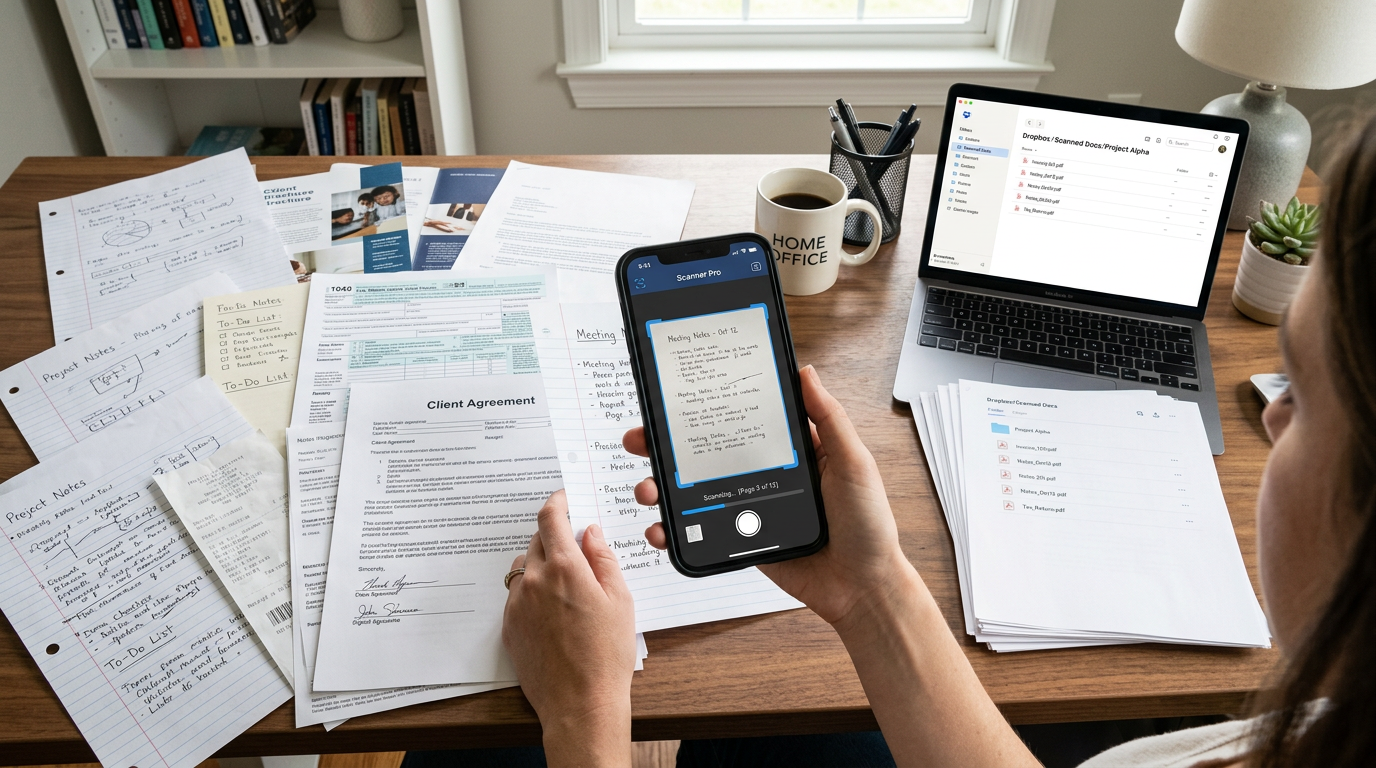
That is common. Receipts, printed documents, handwritten notes, and supporting photos often end up in the same PDF. The app should make that easy to organize.
Why this matters more over time
One messy scan is a minor annoyance. Fifty messy scans become a system problem. Files get harder to find, paperwork needs to be redone, and simple admin tasks take longer than expected.
That is why an improved edit experience is not a minor upgrade. It changes whether people can trust their scanner for repeat use. The more often you handle documents, the more valuable those small corrections become.
If your routine includes turning paper records and photos into organized PDF files, the editing step is not extra. It is the part that makes the scan useful.
For users who want that process to stay simple on mobile, Scan Cam: Docs PDF Scanner App fits the practical middle ground between a basic camera album and a heavier document system. You can explore the app workflow on the Scan Cam: Docs PDF Scanner App website or see how it approaches everyday scan cleanup in the app blog archive.